



Test vistrax 30 days for free
THE COMPLETE VISITOR MANAGEMENT SUITE
Test and experience how digital visitor management improves reception processes, increases security and supports compliance requirements. Evaluate all features including visitor registration, self-service kiosk workflows, welcome screen, documentation and reporting in your own environment.
Main Application
Web-Client
Kiosk
Welcome
Self-Input App
Ready to go in five steps
From technical preparation to first use.
Prepare
Check the technical requirements and prepare your IT infrastructure.
Download
Download the trial version. Your trial license is sent to you by email.
Install
Run the downloaded file and install vistrax.
Activate
Enter your trial license in vistraxConfig.
Set up
Configure vistrax to suit your requirements and start your trial.
Two ways to your vistrax trial version
Install vistrax on your own or get started together with our support team.
Install it yourself
Would you like to set up vistrax yourself? Download the trial version and install the software in your prepared IT infrastructure. The trial license is sent to you by email.
Start with our support team
Our support team installs the trial version in your prepared IT infrastructure free of charge (max. 45 minutes). We then offer a 45-minute introduction for your employees. If you wish, you can clarify technical questions with us beforehand.
Technical requirements
So that you can test vistrax smoothly, your IT infrastructure should be prepared accordingly before installation.
Basic requirements
Windows 11 (64-bit)
At least 4 GB RAM
MS SQL database
Administrator rights
Network access
Prepared PC or server environment
Depending on the trial scenario
Email Server (SMTP / POP3)
For testing the email features.
Additional Devices
Suitable hardware and peripherals for Kiosk and Welcome scenarios, if needed.
What's new in version 3.6
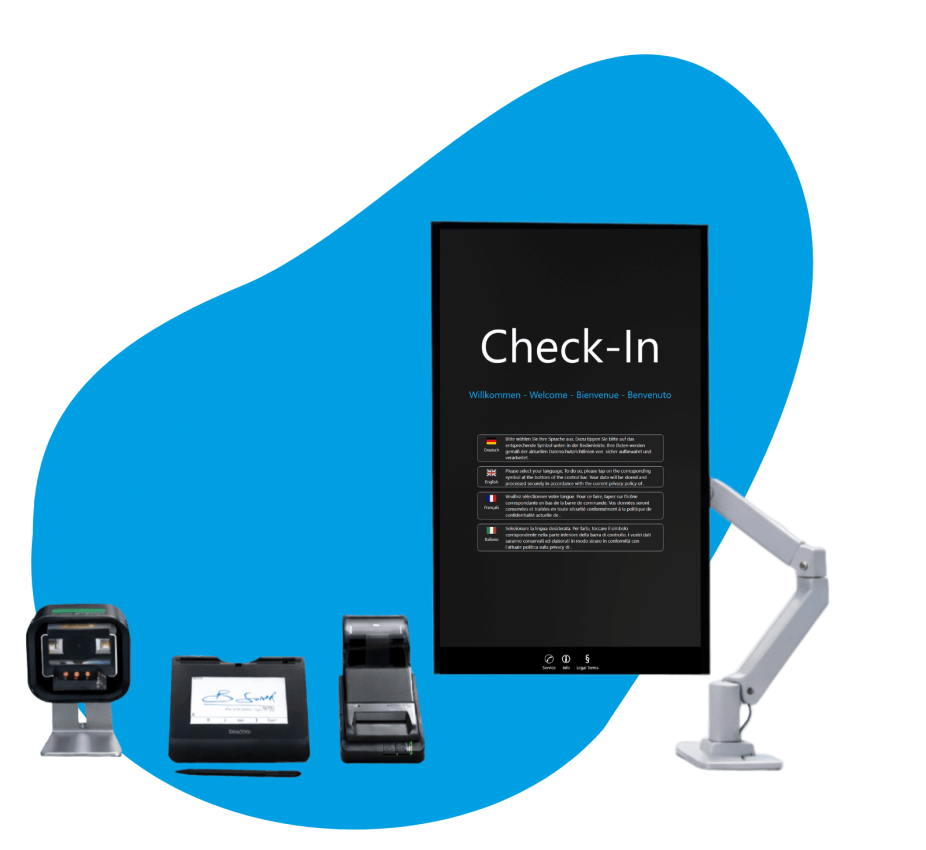
vistrax Kiosk Add-On
Allow visitors to register themselves at a dedicated kiosk terminal while reducing manual reception effort.
✔ Self-service check-in & check-out
✔ Touchscreen support
✔ Digital signatures
✔ Automatic document printing
✔ Host notifications
✔ Multi-language support
Enhanced Data Protection
Automatic deletion of personal data after defined retention periods.
Increased Stability
Optimizations for 24/7 operation, as well as improvements in memory consumption and service availability.
FAQ
Frequently asked questions
Is the vistrax trial free?
Yes. You can try vistrax free for 30 days and explore the available features in your own environment. A valid trial license is required and is automatically sent to you by email after the download. No separate activation is necessary.
Which features can I test?
During the trial period, you have access to all features included in the trial version. This allows you to test typical visitor management processes in a realistic setting.
What setup do you recommend?
For a realistic test, we recommend a 64-bit client-server environment consisting of a server running Windows Server 2025 (64-bit) and a Windows 11 (64-bit) Workstation as the client. The server and client must be connected through the same network. This setup ensures compatibility with current Microsoft technologies, including SQL Server, which is no longer available for 32-bit platforms.
For smaller evaluations or getting started with the trial version, vistrax can also be installed on a single Windows 11 (64-bit) Workstation. A dedicated Windows Server is therefore not required for an initial evaluation.
Do I need a database?
Yes. A Microsoft SQL Server instance is required. We recommend Microsoft SQL Server 2025 Express, which can optionally be downloaded and installed using the vistrax Admin tool.
What permissions are required?
Local administrator rights are required to install and initially configure vistrax. After installation, the client applications can be run by standard users. In a corporate environment, please coordinate the installation with your IT department.
Is installation support available?
Yes. Our online installation guide and application help provide step-by-step assistance. If you need additional support, you can contact the vistrax support team.
Can I update to a full license without reinstallation?
Yes, if you then decide to use vistrax, all you need to do with a correctly set up installation is to replace the trial license with your purchased full license.
How do I obtain a valid trial license?
A trial license key will be sent automatically to your email address after the download. You must enter it in the vistrax Config Tool and restart the vistrax Server Service.
What happens after the 30-day trial?
A valid license is required to continue using vistrax after the trial period. If you have more questions concerning licensing, please contact the vistrax sales team.
Can I continue using my trial installation after purchasing a license?
Yes. After purchasing a license, you can activate and continue using your existing installation. Reinstallation is generally not required.
Can I test vistrax on a single Workstation?
Yes. You can install vistrax on a single Windows 10 or 11 workstation to explore its core features and workflows.
Is a separate web server service required?
No. vistrax Server includes its own lightweight web server service. However, ports 80 and 443 must not be in use by another web server, such as Apache or IIS. Any required SSL certificate can be configured in the vistrax Config Tool.
Do I need to adjust the firewall settings?
The installer automatically configures all required settings on the Windows computers where technically possible. Otherwise, you must ask your administrator to configure the necessary settings manually. This also applies to firewalls protecting the local network. You can find the required information in the installation guide.
Which browsers does the web client support?
The vistrax web client supports current versions of:
- Google Chrome
- Microsoft Edge
- Mozilla Firefox
- Apple Safari
- Opera
For the best security, performance, and display quality, we recommend keeping your browser up to date.
Can vistrax be used without an internet connection?
Yes. After installation, vistrax can operate independently within your local network, meaning no internet connection is required.
Is vistrax compatible with endpoint security software?
Yes. If you experience issues or crashes, we recommend using HTTPS exclusively and disabling HTTP. The same applies to the SMTP and POP3 email protocols, which should also be configured to use SSL encryption only.
Is vistrax Cloud-ready?
Yes. vistrax Server can be hosted on a Windows host. Communication uses HTTP (port 80) or HTTPS (port 443) and requires TCP only. Data exchange is based on REST / JSON API. All data packages are encrypted.
Do I need any additional hardware for the trial?
No. You only need a printer, but you can also use a PDF printer instead. However, hardware-dependent features such as barcode scanning and signature capture require compatible hardware.
I’m unable to install the software. Is an online demo available?
Yes. Please contact the vistrax sales team to schedule a personal consultation and learn more about vistrax.
How can I activate a purchased full license?
You can activate your full license on the License Activation page. You will need the activation code you received with your purchase and the Hardware-ID of the Windows server on which vistrax Server is installed. You will then receive a personalized license key, which you must enter in the vistrax Config Tool. The vistrax Server Service must then be restarted.